 AI Switch Off
Chrome on Mac and iPhone
Avoid AI Overviews in Chrome on Mac and iPhone
On Mac, three settings took about two minutes. On iPhone, a five-step Chrome flow also opened Google’s Web results. In my Oct 4 tests, those result pages had no AI Overview at the top. AI Mode remained available.
Desktop Chrome: before and after this setup
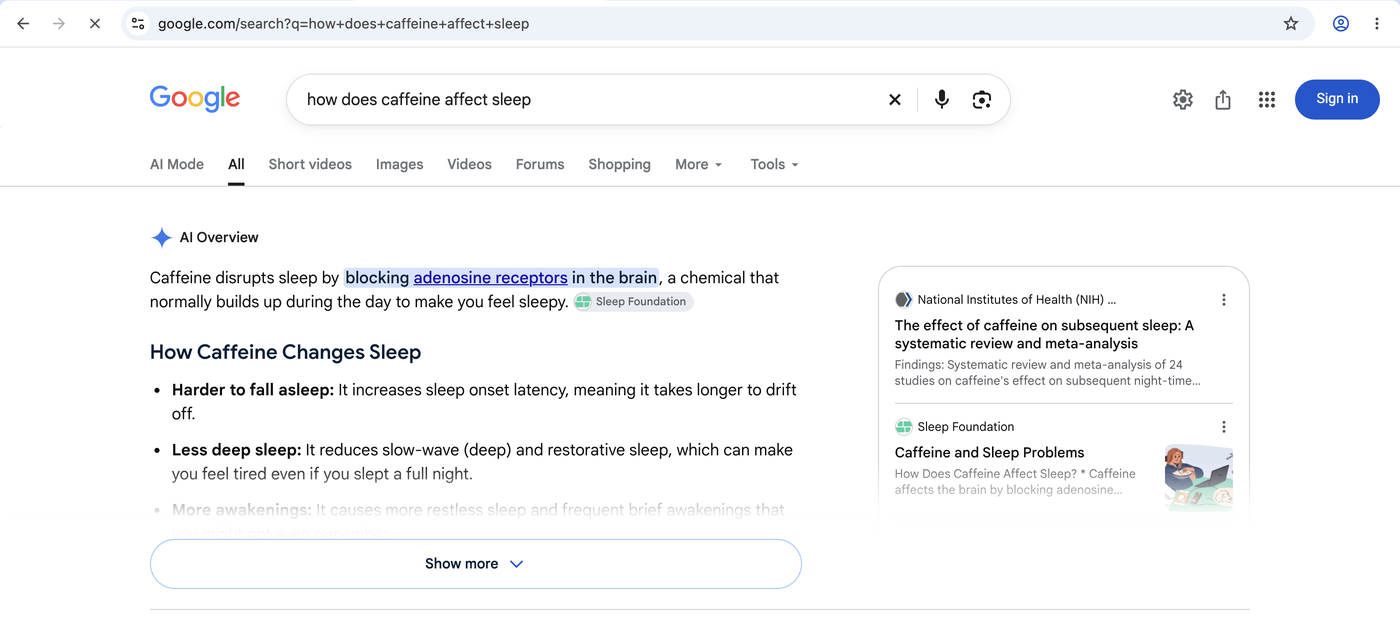
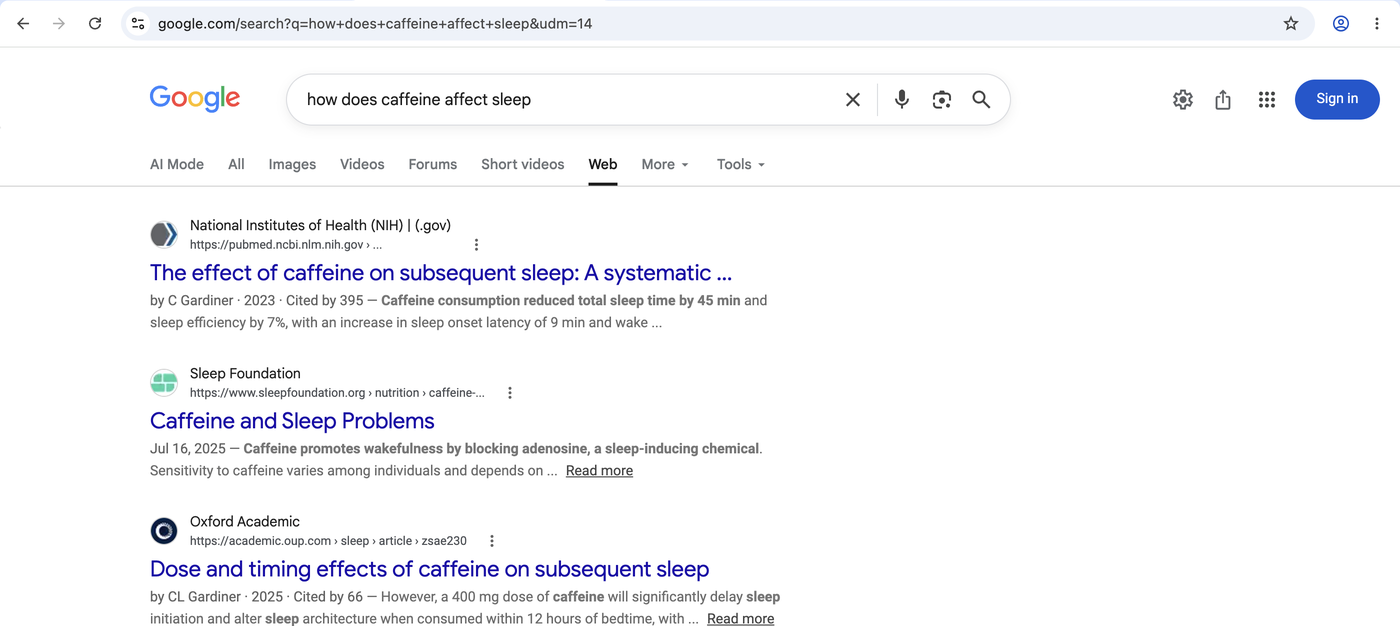
Edge and Brave use the same custom-search-engine steps, but I have not tested or photographed them separately.
Desktop Chrome: copy these three fields
Google Web
@web
https://www.google.com/search?q=%s&udm=14
Desktop Chrome: the 3-step setup
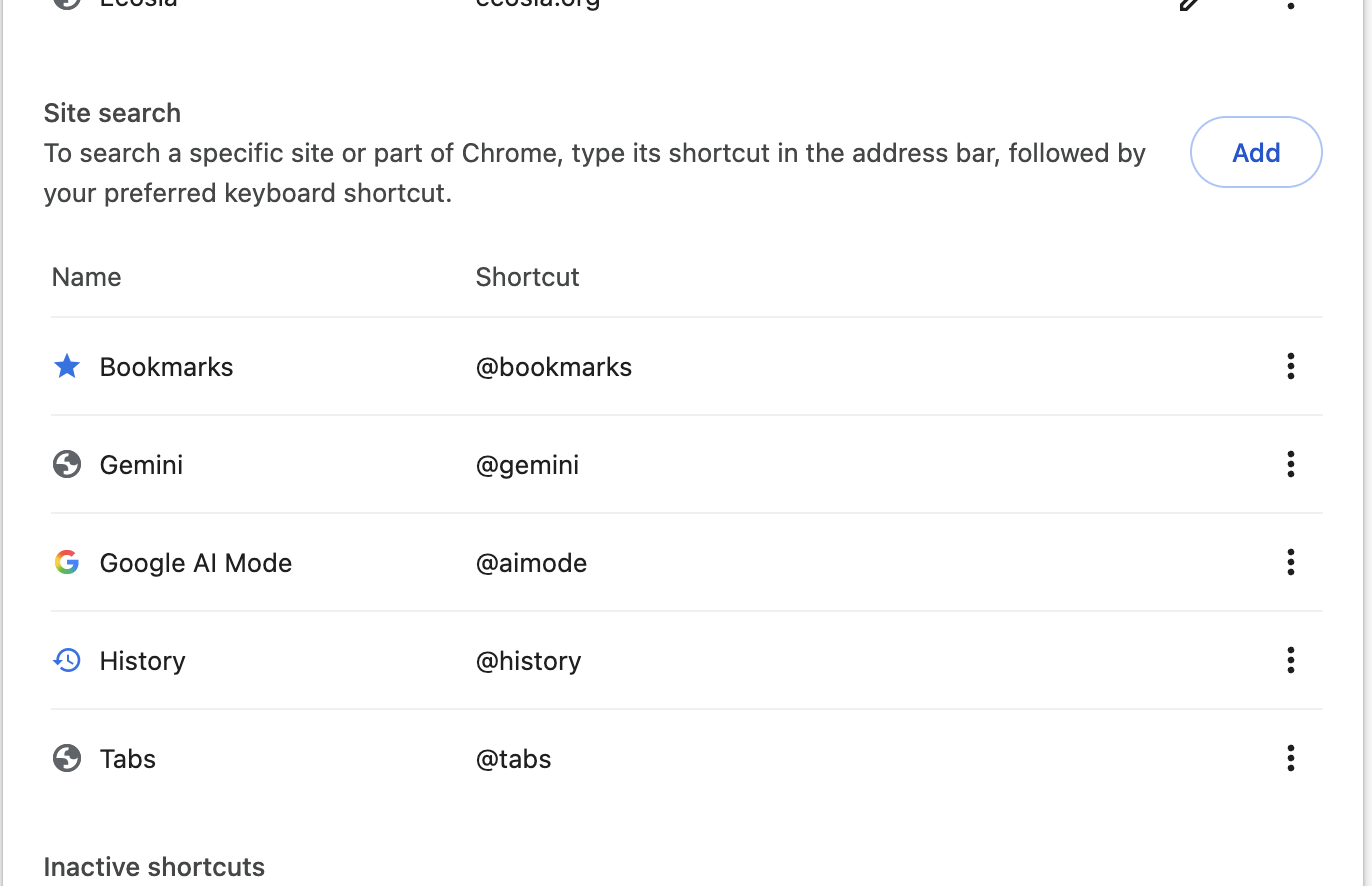
Enter settings
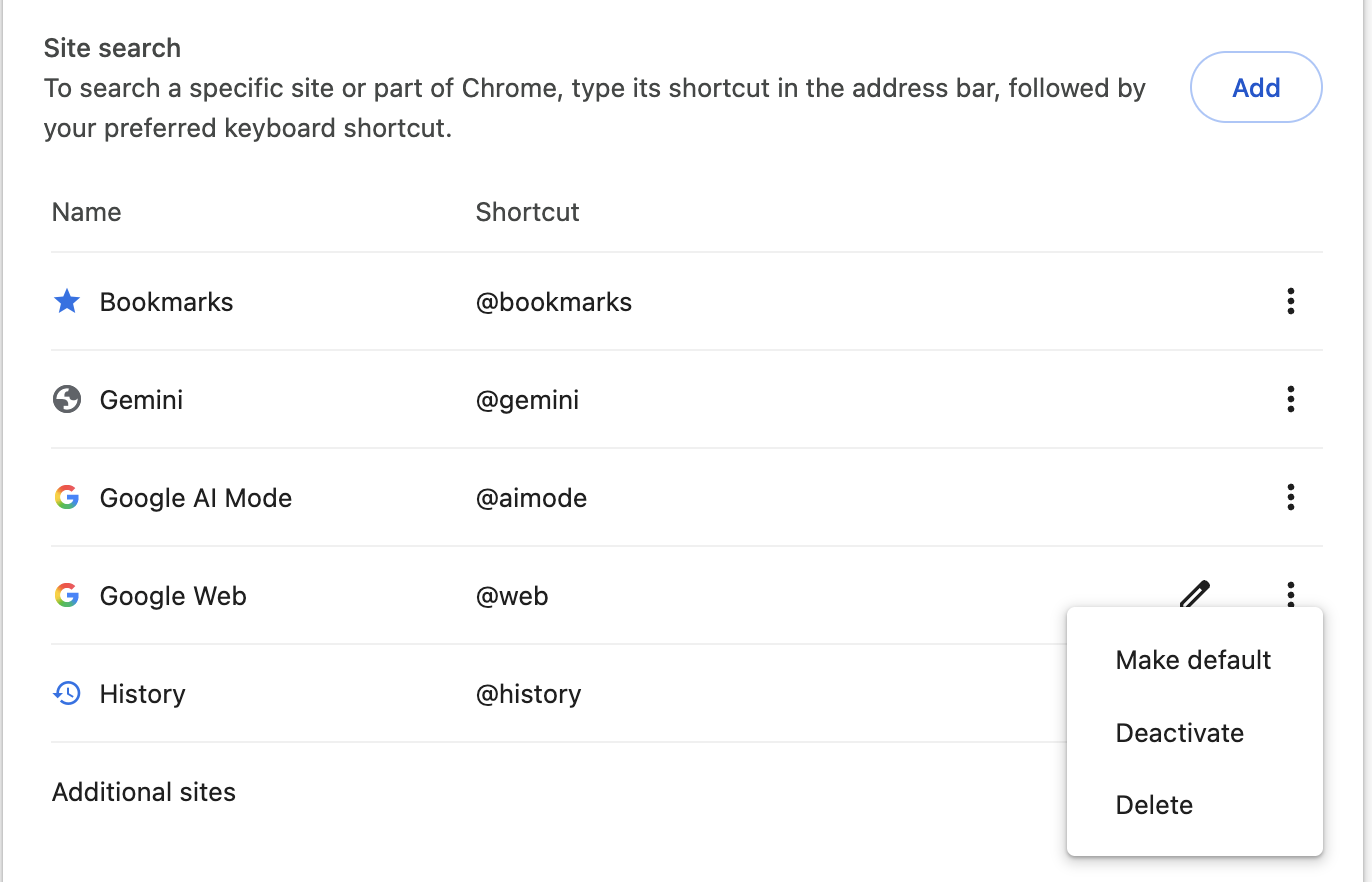
Paste chrome://settings/searchEngines into the address bar. Or open Settings → Search engine → Manage search engines and site search. Find Site search and click Add.
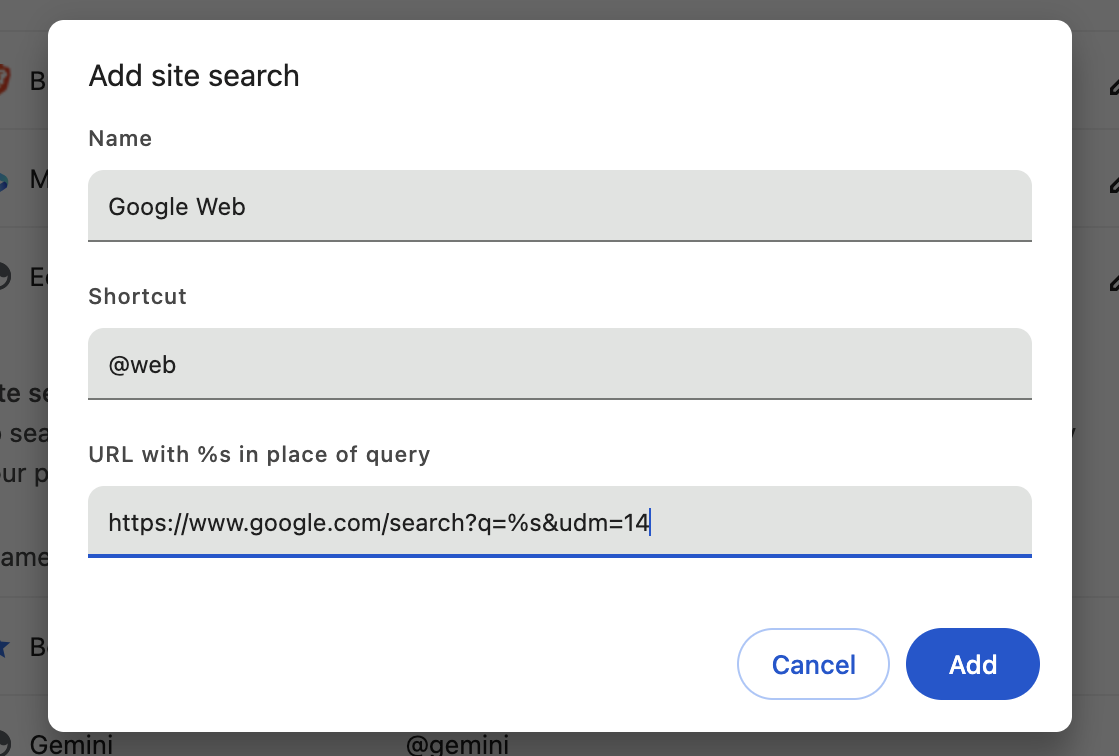
Add the three fields
Enter Google Web, @web, and https://www.google.com/search?q=%s&udm=14 in their matching fields, then click Add. The %s is required: Chrome replaces it with your search words.
Make default
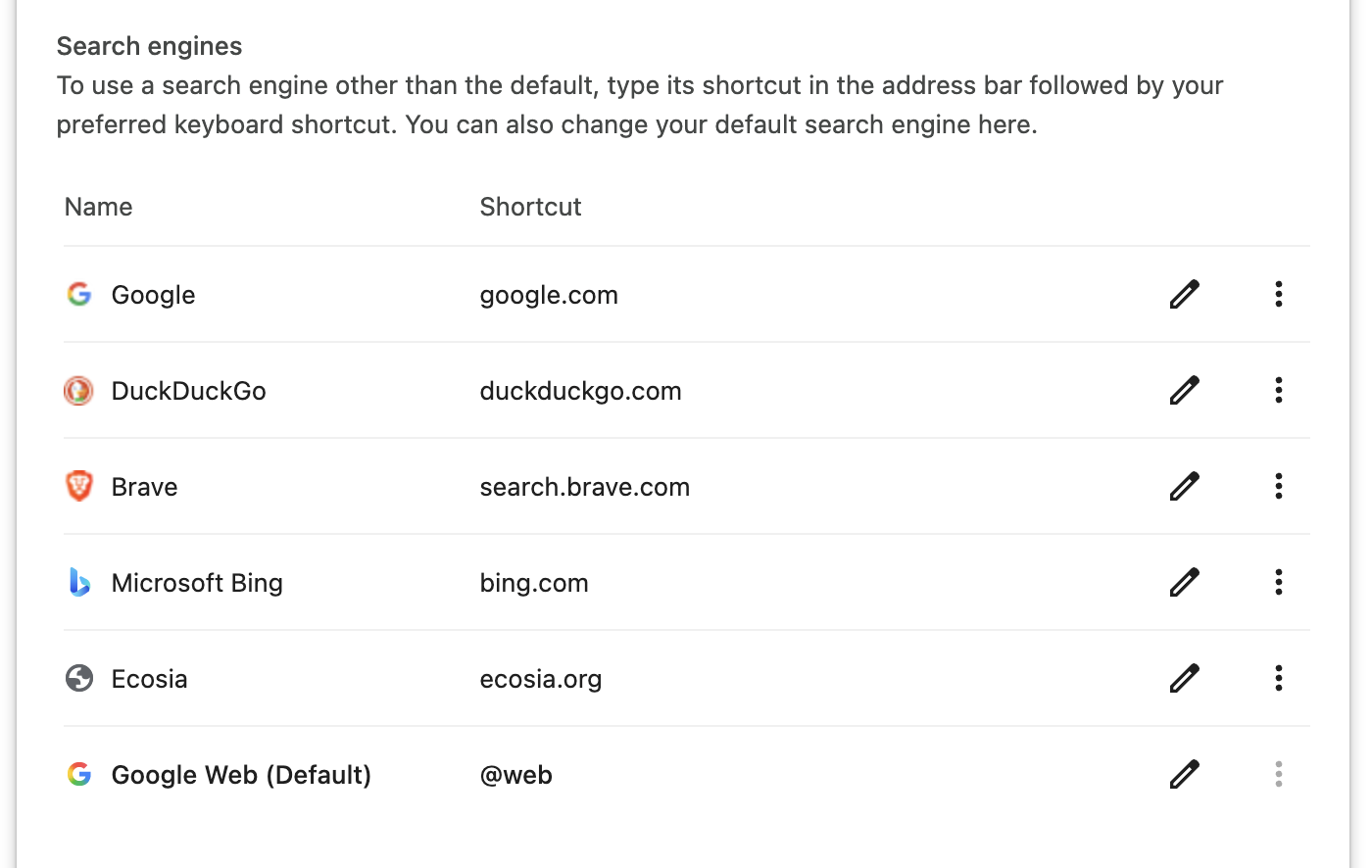
Find Google Web under Site search. Open its ⋮ menu and choose Make default. The row then moves to the Search engines section and reads Google Web (Default).
On iPhone: Chrome and Safari
Chrome on iPhone
- Open this page (aiswitchoff.com) in Chrome on your iPhone. AI Switch Off publishes an OpenSearch description for “Google Web.” Searches made with it go straight to Google, not through this site.
- Open a new tab and run a Google search. Type a fresh search term yourself; do not choose a suggestion from your search history.
- Tap ⋯ → Settings → Search engine.
- Under Recently visited, tap Google Web with aiswitchoff.com shown beneath it. It moves into the main list with a checkmark.
- Search from the address bar. Check that the URL contains
udm=14and that Web is selected.
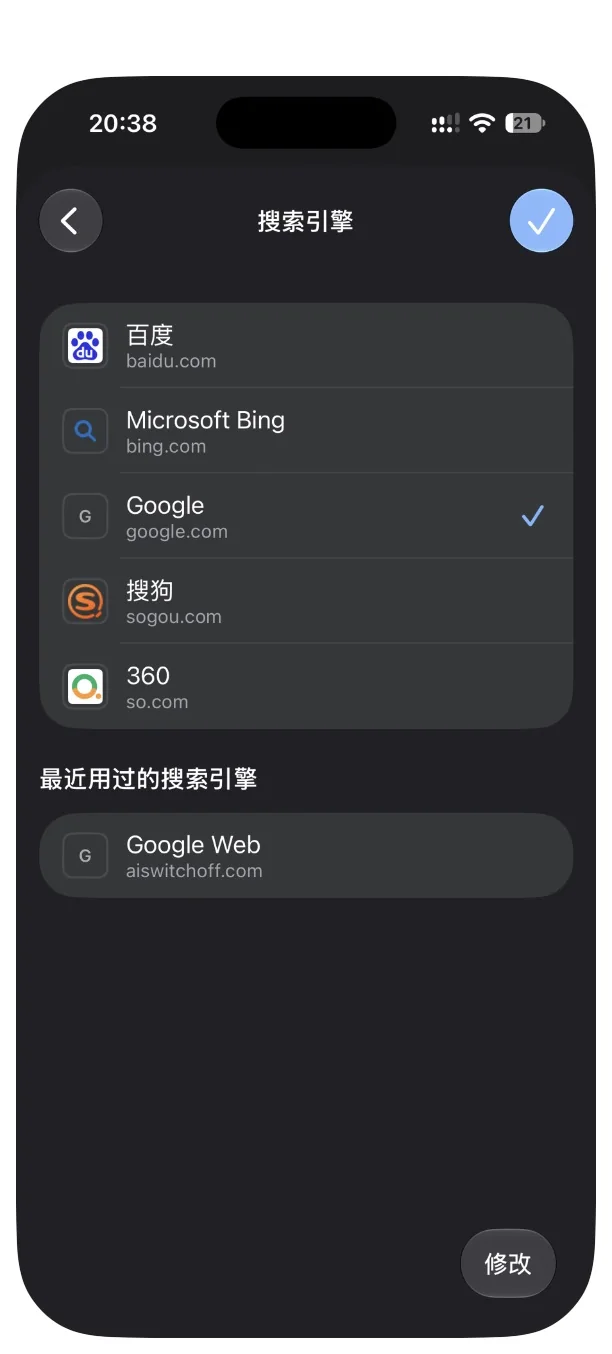
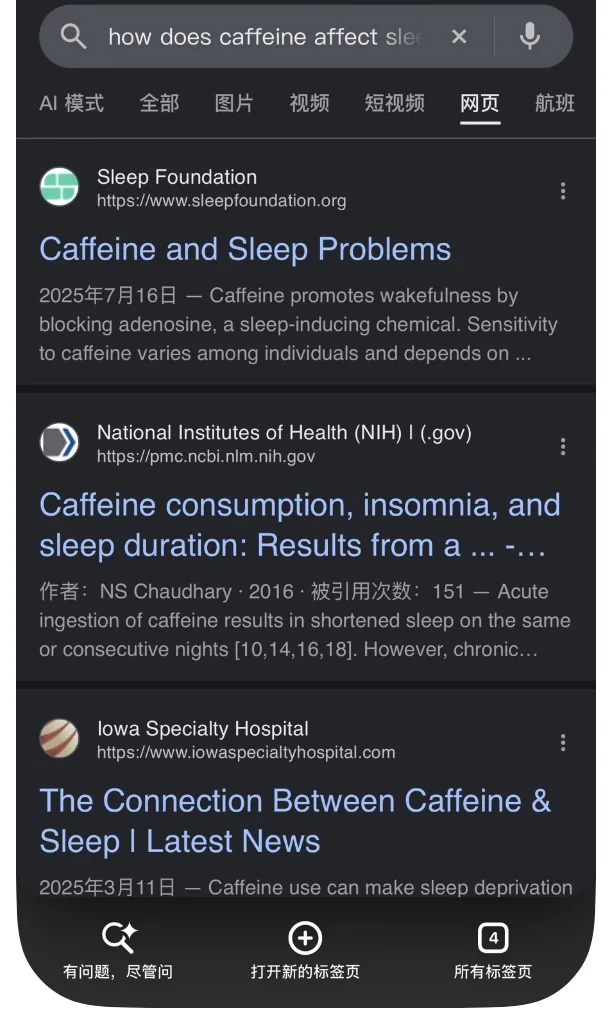
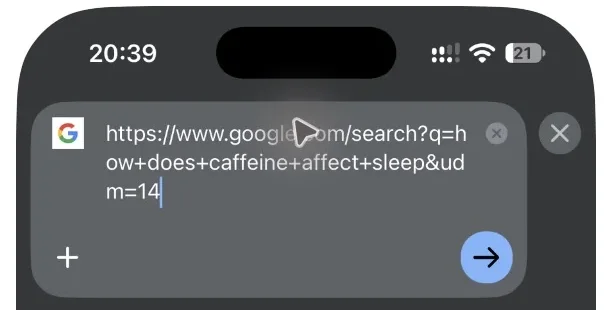
udm=14. The test iPhone’s Google results interface is in Chinese; 网页 is Web.Google Web doesn't appear under Recently visited
Reopen this page, then open a new tab and type a fresh Google search yourself instead of choosing a history suggestion. Reopen ⋯ → Settings → Search engine and check again.
If you previously used another site that provided an item with the same Google Web name, Chrome may show only that older item. You can select the old Google Web item—the search effect is the same—or tap Edit, select the old item, tap Delete → Done, then reopen this site and retry the fresh-search steps. This may help, but the test does not establish why Chrome sometimes shows one same-name item instead of another.
Undo on iPhone Chrome
Open ⋯ → Settings → Search engine and tap Google. To remove the saved entry as well, tap Edit, select Google Web, then tap Delete → Done.
Safari on iPhone
Safari’s visible Search Engine settings page showed a fixed list with no option to add a custom engine in my iOS 27.0.1 test.
For each Google search, tap the Web tab on the results page. Swipe the tab row if you do not see it. In my test, this removed the AI Overview from the top of the page.
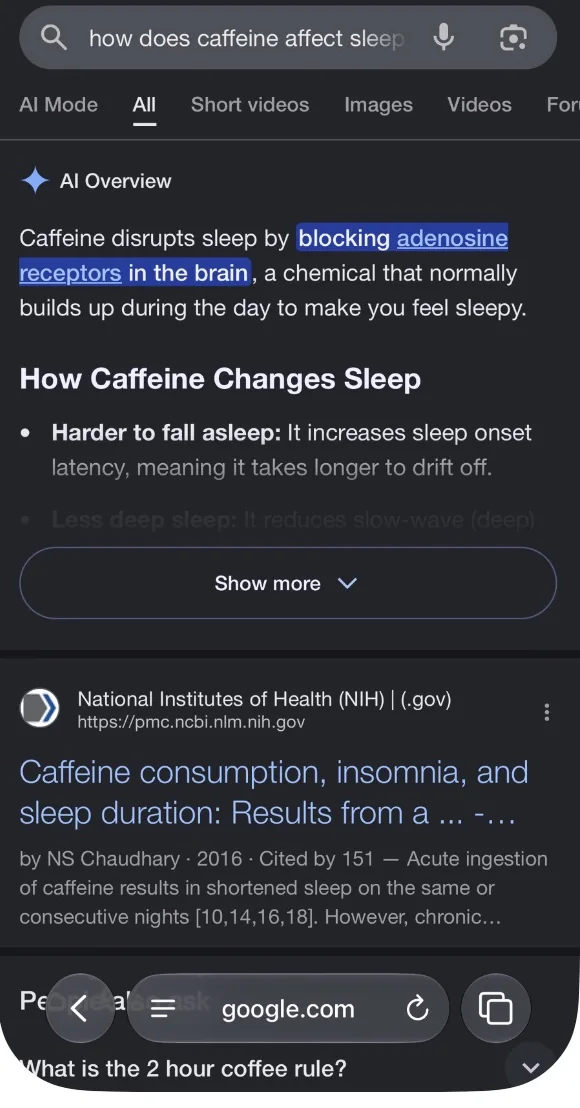
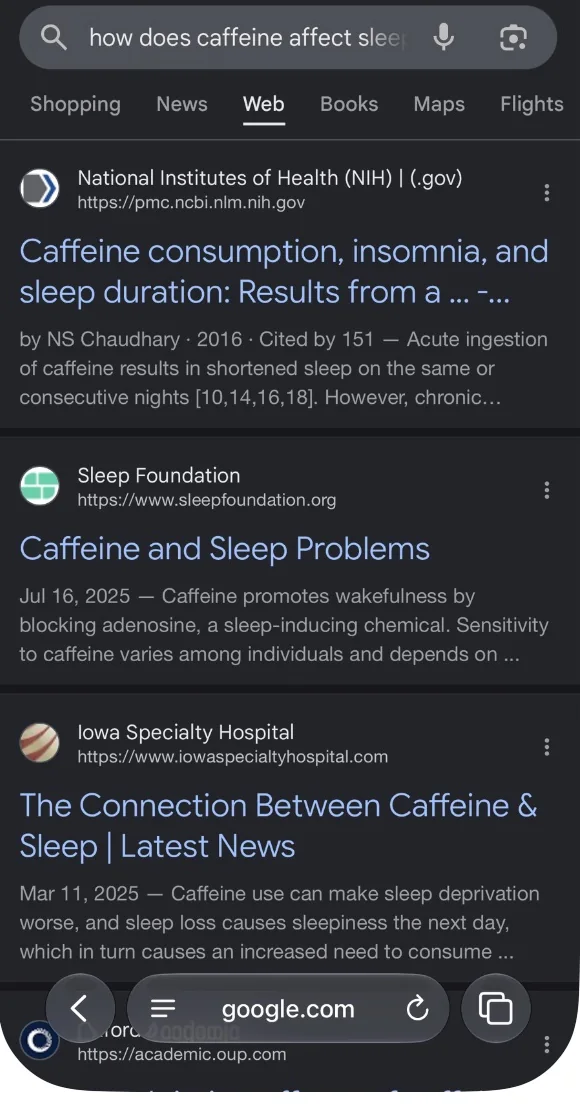
Google app: Not tested; this setup does not change searches in the Google app.
Check the desktop Chrome setup
- Start a search in the browser address bar. The suggestion can show “Google Web Search.”
- After the page loads, check that the URL contains
udm=14. - Check that the Web tab is selected. In our test, the result page did not show an AI Overview. The AI Mode tab remained available.
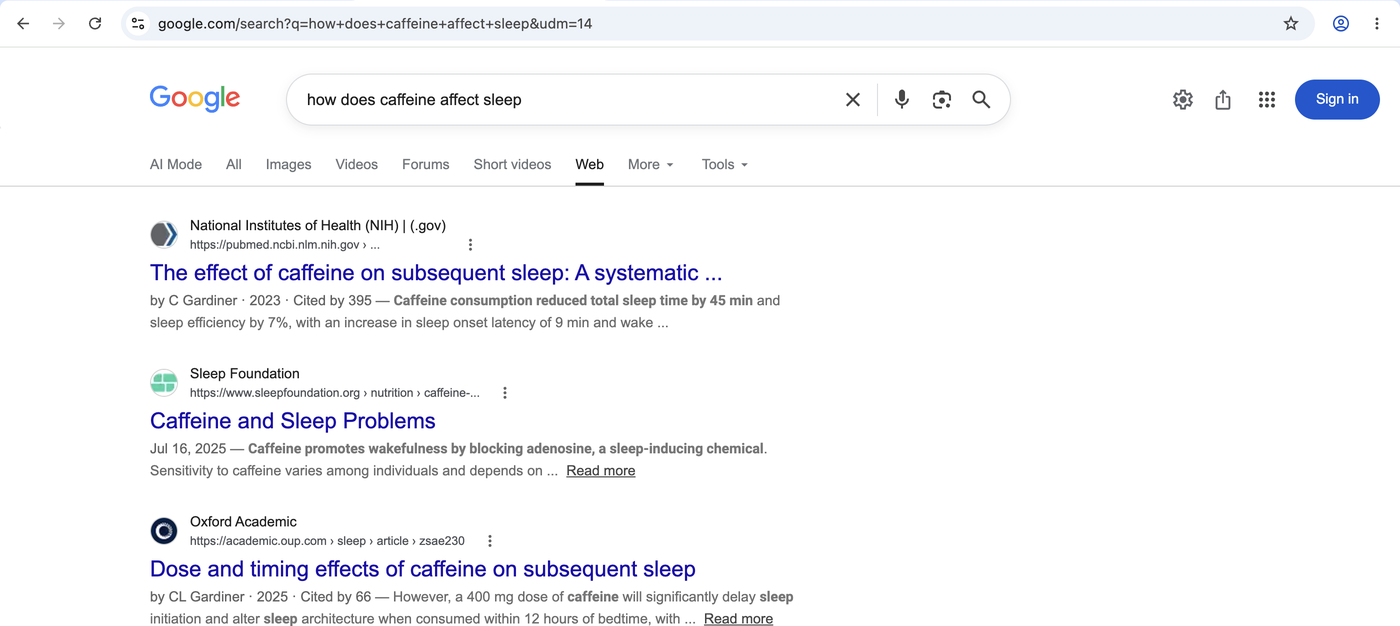
udm=14 in the address bar.Compare the default and Web result pages above. This is a manual check: a website cannot read your browser’s default search engine.
Desktop Chrome: why it didn’t work
You searched somewhere other than the address bar
This setting applies to address-bar searches. A Google page search box and the Google app follow their own search path. Chrome’s new-tab page also has an AI Mode control; choosing it opens AI Mode.
You added Google Web but did not make it the default
Saving the row under Site search is only the first part. Open its ⋮ menu and select Make default.
The URL is missing %s or &udm=14
Compare your entry with https://www.google.com/search?q=%s&udm=14. Chrome needs %s as the query placeholder, and udm=14 selects the tested Web results view.
You used the Google app or a Pixel home-screen search box
Those searches do not use Chrome’s default address-bar engine. Run the check from Chrome’s address bar.
You clicked AI Mode
The setup does not remove AI Mode. Chrome 154 included an AI Mode shortcut and Google results still showed the AI Mode tab. Selecting either enters AI Mode.
The Google Web row seems to have disappeared
After Make default, Chrome moves it out of Site search and into the Search engines list. Look there for Google Web (Default).
A synced profile changed the setting
If Chrome sync restored another search engine, make Google Web the default again in the profile you use for address-bar searches, then repeat the manual check above.
Chrome is managed by work or school
If you use Chrome at work or school, your administrator may choose the default search engine or manage search engines for you. If Make default is unavailable, check with your administrator. Chrome Help documents this managed-browser limit.
Desktop Chrome: how to undo the change
Open chrome://settings/searchEngines. Under Search engines, open ⋮ next to Google and choose Make default. Then open ⋮ next to Google Web and choose Delete — or choose Deactivate to keep it.
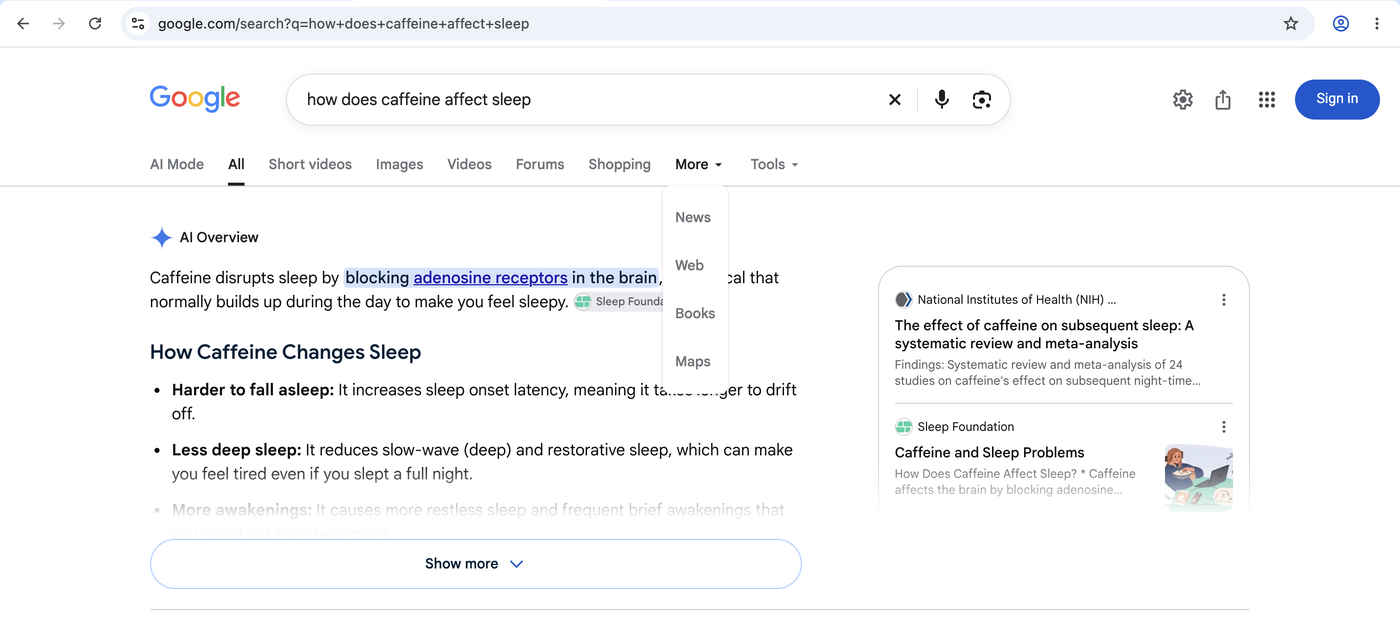
Quick method: use the Web tab
For a single desktop search, click Web on the Google results page. If you do not see it, open More. On iPhone, swipe the tab row if needed, then tap Web. This switches that search to web results; the address-bar setups above continue to use the tested udm=14 URL.
A query trick, with a side effect
Adding -ai to the end of a query also avoided the AI Overview in our Oct 4 tests, but it is not an official switch. Because the minus operator changes the query, it can also exclude results containing “ai.” Use it only as a temporary search trick. This behavior has also been reported by 9to5Google.
What this changes—and what it doesn’t
Google says there is no official control to turn off these AI features. Its documented alternative is to select the Web filter after searching. The setup on this page makes Chrome address-bar searches open a tested Web-results URL instead.
Gemini features elsewhere and the AI Mode tab remain available; the Google app is unchanged. Google may also change URL behavior, and search layouts can vary by region and account.
AI Switch Off provides an OpenSearch description. In the iPhone Chrome test on this site, “Google Web” from aiswitchoff.com appeared under Recently visited after the page was opened and one fresh Google search was run. Search requests made with it go directly to Google, not through this site.
Source: Google Search Help: AI Overviews in Google Search. For changing desktop Chrome search engines, see Chrome Help.
Test record: Desktop: Chrome 154.0.8037.95 on macOS, a temporary fresh profile with no Google account signed in and no extensions, English interface, US connection, Oct 4, 2026. Windows, Edge, and Brave were not separately tested. Queries tested: “how does caffeine affect sleep” and “best way to clean cast iron.” When I clicked the Web tab, the page URL used a different parameter from this setup, but the result was the same Web view.
iPhone record: Tested on this site on Oct 4, 2026: iPhone 17, iOS 27.0.1, Chrome 154.0.8037.55 — Google Web from aiswitchoff.com appeared under Recently visited after one fresh Google search; selecting it opened Web results with udm=14 and no AI Overview at the top.
This was one successful clean-state test on one phone, so it does not guarantee the item will appear on every device or after every visit. Safari’s per-search Web tab was tested with the same query on the same phone. A US Shadowrocket node was reported but the exit IP was not independently verified. The Google app was not installed and was not tested.